
How to Transfer Books to a Kobo with USB and Calibre
To transfer books to Kobo, connect the e-reader to your computer with a USB cable, then drag EPUB or PDF files into the Kobo drive and eject safely. For DRM-protected or library titles, use Adobe Digital Editions, and use Calibre when you want clean formatting and an organized library.
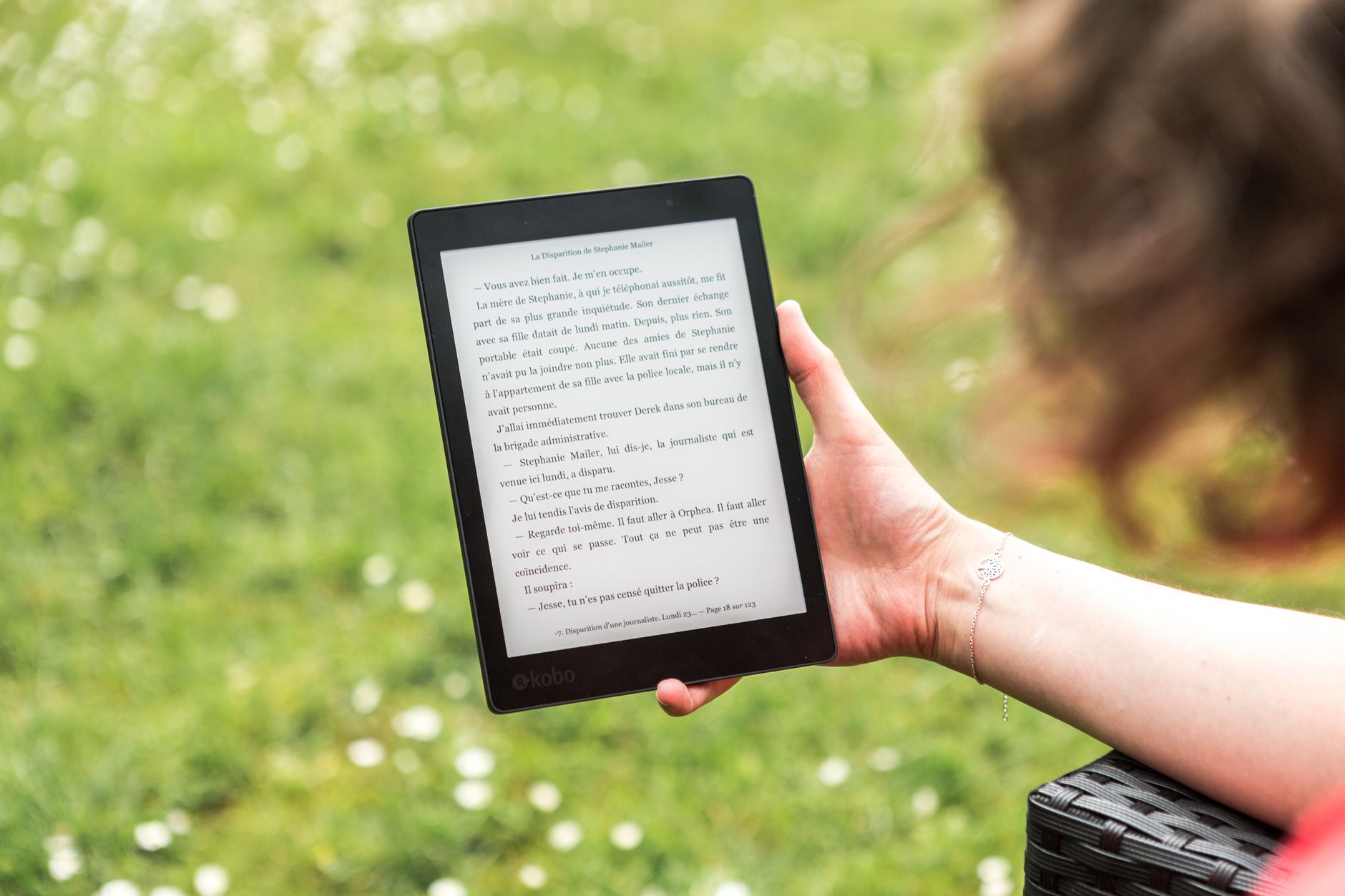
To transfer books to Kobo, connect the e-reader to your computer with a USB cable, then drag EPUB or PDF files into the Kobo drive and eject safely. For DRM-protected or library titles, use Adobe Digital Editions, and use Calibre when you want clean formatting and an organized library.
Getting a fresh ebook onto a Kobo should feel effortless, yet the process quietly trips up plenty of readers. Sideloaded files land in the wrong folder, covers vanish, or a borrowed library title flatly refuses to open.
Every one of those headaches has a clean fix. The three methods below cover a quick USB copy, a fully managed Calibre library, and the Adobe route for protected books, so you can pick the one that matches the file in front of you.
What you need before you transfer books to Kobo
A few basics make the whole job smoother. Gather these before you plug anything in:
- A USB cable that fits your model, ideally the one that came in the box.
- The ebook files themselves, in a format the reader accepts, such as EPUB or PDF.
- Free software for tougher cases, namely Calibre for organization and Adobe Digital Editions for library loans.
- A little patience the first time, since the initial setup takes longer than every transfer after it.
Screen prompts differ slightly between devices, but a compact model like the Kobo Clara Colour behaves the same in essence as a larger one.
Copy ebooks onto your reader over USB with drag and drop
The fastest route needs no extra tools at all. It works for any DRM-free EPUB or PDF you already own.
Reader using a USB cable to copy ebooks onto a Kobo from a laptop
Connect the reader to your computer and tap Connect on its screen when asked. Within a few seconds it shows up like a memory stick, listed as a KOBOeReader drive.
Open that drive, then drag your ebook files into it. Dropping them in the main directory is enough, since the reader scans the whole drive on startup.
When the copy finishes, eject the drive safely before unplugging the cable. Skipping the eject step is the most common cause of corrupted files.
On the next power-up, the new titles appear under your library. This drag and drop approach is quick, but it does no housekeeping, so covers and metadata stay exactly as the file provides them.
Use Calibre to keep your library organized
When a shelf grows past a handful of books, manual copying gets messy. Calibre, a free and open-source manager, sorts covers, metadata, and format mismatches in one place.
Add your files with the Add books button, then check each title under Edit metadata to confirm the cover and author are correct. Calibre can fetch missing details automatically.
Plug in the reader, wait for Calibre to detect it, select your titles, and choose send books to your device from the top menu. A green check confirms each transfer, after which you eject from inside Calibre.
Because Calibre reads Kobo EPUB files and many other formats, it can convert an incompatible file on the way across, so an old MOBI or a comic archive still lands in a readable shape.
Still deciding whether your current reader is the right long-term fit? It helps to compare current reader models side by side before you invest in more accessories or a bigger library.
Add library and DRM-protected books with Adobe Digital Editions
Books borrowed from a public library or bought from certain shops carry Adobe DRM, and a plain USB copy will not open them. Adobe Digital Editions handles the licence and unlocks the file for your device.
Install the software, then sign in. Note a recent change: Kobo now points users to a ByteBooks ID rather than the older Adobe ID, so create that account with the same email you already use.
Next, follow the official steps to authorize your reader in Adobe Digital Editions, which pairs the device with your account. Both the computer and the reader must be authorized with the same credentials.
With that done, open the .acsm file you downloaded, let the software pull the full EPUB, then drag the book onto your device inside the program. Eject, unplug, and the loan appears in your library.
Which file formats a Kobo can read
Matching the file to the right method saves time. The table below maps common formats to the smoothest transfer path.
| File format | Typical source | Best transfer method |
|---|---|---|
| EPUB and EPUB3 | Stores and DRM-free shops | USB drag and drop, or Calibre |
| Documents and manuals | USB drag and drop | |
| Library .acsm | Public library or Overdrive | Adobe Digital Editions |
| MOBI, CBZ, CBR | Older files and comics | Calibre, converting to EPUB |
Comics and older files are the usual sticking point, which is exactly where Calibre earns its place. For picture-heavy reading, a larger colour panel such as the one covered in the Kobo Libra Colour review shows those pages at their best.
Fix the most common transfer problems
Most issues come down to a handful of causes. Run through these before assuming the file is broken:
- Book missing after a transfer: restart the reader so it rescans its storage.
- Cover or title wrong: edit the metadata in Calibre and send the book again.
- Library file will not open: confirm the reader is authorized with the same account used in Adobe Digital Editions.
- Reader not detected: try another USB port or cable, since charge-only cables carry no data.
Work through those checks and the files load reliably, whatever the source or format.
Conclusion
Learning to transfer books to Kobo comes down to three dependable routes: a quick USB drag and drop for open files, Calibre for a clean and organized shelf, and Adobe Digital Editions for library loans and protected titles. Pick the method that matches the file, keep the same account details across your tools, and always eject before unplugging. With that routine in place, loading new reading takes moments. Before adding to your setup, take a moment to weigh how the leading readers handle your favourite formats so your next device fits the way you actually read.
Frequently asked
Comment transférer des livres sur Kobo à partir d'un ordinateur?
Pour transférer des livres sur Kobo, branchez le lecteur à votre ordinateur avec un câble USB et appuyez sur Connecter à l'écran. L'appareil s'affiche comme un lecteur, vous pouvez donc glisser des fichiers EPUB ou PDF directement dedans, puis éjecter en toute sécurité. Pour les titres empruntés ou protégés, faites-les passer par Adobe Digital Editions d'abord.
Peut-on ajouter des livres à un Kobo sans aucun logiciel?
Oui. Pour les fichiers sans DRM comme les EPUB et PDF, aucun logiciel supplémentaire n'est nécessaire. Connectez le lecteur via USB, ouvrez le lecteur qui apparaît sur votre ordinateur, et déposez les fichiers à l'intérieur. L'appareil les indexe la prochaine fois qu'il démarre. Calibre aide seulement quand vous voulez une organisation automatique ou des couvertures plus soignées.
Pourquoi un Kobo n'ouvre-t-il pas un livre de bibliothèque?
Les livres de bibliothèque arrivent généralement sous forme de fichier .acsm, qui est un ticket de licence plutôt que le livre lui-même. L'appareil ne peut pas le lire directement. Ouvrez ce fichier dans Adobe Digital Editions, connectez-vous avec le compte requis, et laissez le logiciel télécharger le vrai EPUB. Ensuite, autorisez votre lecteur et faites glisser le titre.
Calibre change-t-il les formats de fichiers automatiquement?
Calibre peut convertir des fichiers, mais il ne le fait pas sans instruction. Lorsque vous envoyez un livre à un appareil connecté, Calibre vérifie si le format est pris en charge et propose de convertir seulement si nécessaire, par exemple en transformant un MOBI en EPUB. Pour la plupart des fichiers EPUB et PDF, rien ne change du tout.